ONE WORKFLOW
Keep. Change. Restore.
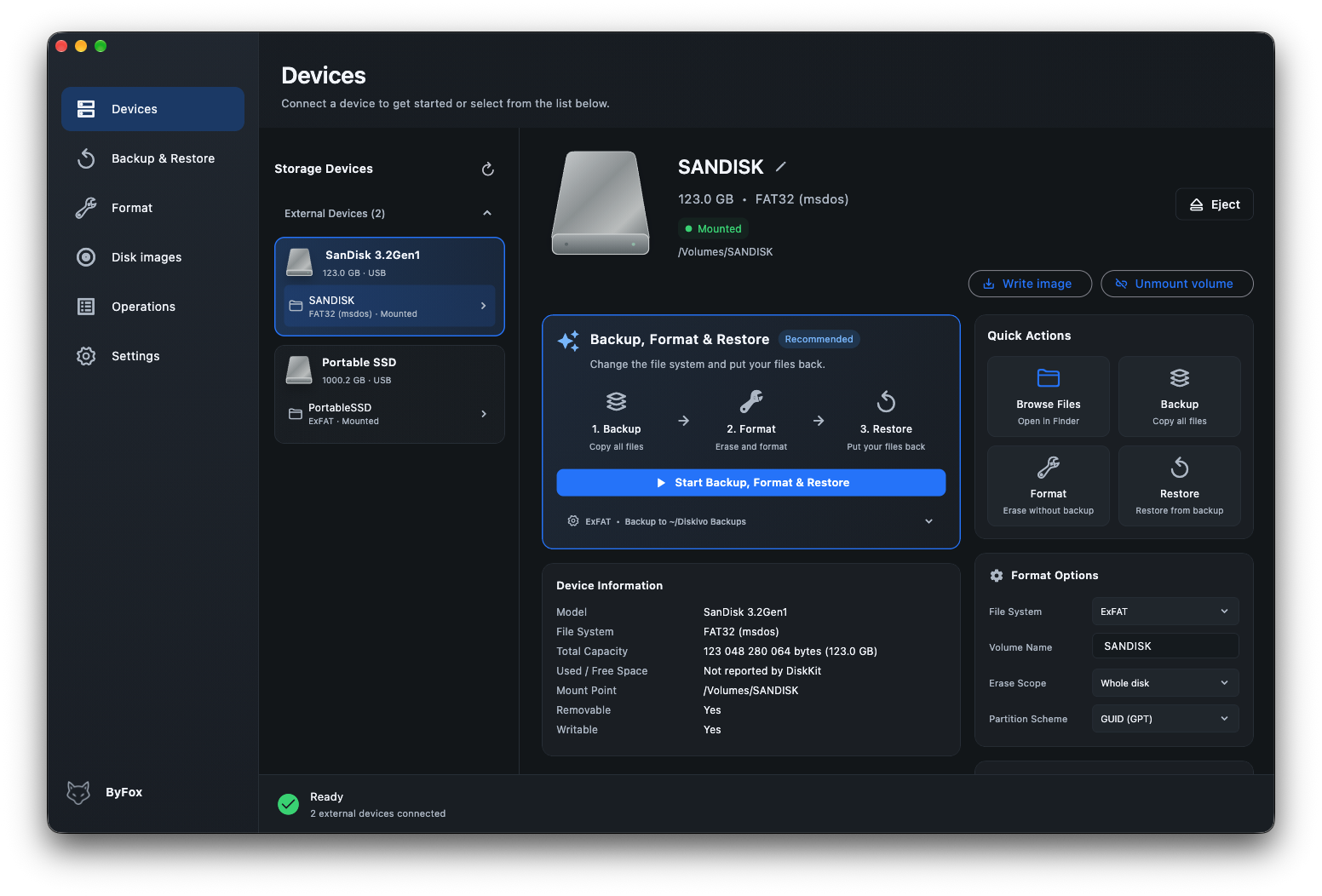
Back up your files, format the drive and restore its contents. SHA-256 checksums help verify the backup.
 VulpShift
Disk tools / macOS
View your computer’s disks and manage external drives in one place. Create backups, format drives, restore files and write disk images.
macOS 12+ · A desktop app by byFox
The app will soon be available on the Mac App Store.
Choose an app view. Click the image to enlarge it. Screenshots show the English version of the app.
Tools
From a connected USB drive to a ready-to-use device. The tools you need, without jumping between apps.
Back up your files, format the drive and restore its contents. SHA-256 checksums help verify the backup.
Browse your computer’s disks, external drives and their volumes. Enable internal disks in Settings. System volumes are protected from formatting.
Write IMG and hybrid ISO images or prepare Windows UEFI installation media. With optional verification after writing.
Step by step
Choose an external volume, a backup location and a target format. Every step has its place, with progress visible in the app.
Files go into a separate folder outside the target device. The backup is checked before formatting.
Choose the filesystem and partition scheme. Operations that erase data require confirmation.
Copy files from your backup to the prepared drive and check the result.
Back up files → Format the drive → Restore files
Questions & answers
The initial platform is macOS 12 or later. Windows and Linux versions are planned.
The app will soon be available on the Mac App Store.
The Backup → Format → Restore workflow connects those steps. Formatting erases the drive — you first need a verified backup and enough space on another disk.
Yes. Enable internal devices in Settings to see your computer’s disks and their volumes alongside external devices. System volumes are protected from formatting.
Yes. In the app settings, choose a light or dark theme, or follow your system appearance. Explore light mode in the app preview above.
English, Polish and German. You can change the language in the app settings.
No. Direct writing supports uncompressed IMG and USB-compatible hybrid ISO images. Windows UEFI installation media uses a separate preparation workflow. Ordinary optical ISOs and DMG files are not supported.
VulpShift by byFox
Backups, formatting and disk images. One app on your Mac.
Coming to the Mac App Store
The app will soon be available on the Mac App Store.